Here’s a scenario I see all the time: A support agent gets a customer question about resetting a password. Instead of pulling up a pre-written article in seconds, they spend eight minutes digging through Slack messages, a shared Google Drive folder, and three outdated PDFs before writing a custom reply from scratch. Multiply that by 50 tickets a day, and you’ve got a real productivity problem.
I’ve spent years helping teams fix exactly this, swapping chaotic, fragmented systems for clean, knowledge management software that actually gets used. The results are dramatic: search times drop from minutes to seconds, onboarding cycles shrink by weeks, and support ticket volumes fall sharply.
In this blog, I’ll walk you through the 10 best knowledge management software tools worth your attention in 2026, what each one does best, and how to pick the right one for your team.
What Is Knowledge Management Software?
It houses everything from standard operating procedures (SOPs) and how-to guides to training materials, product documentation, and FAQs, so employees can find accurate answers instantly and customers can help themselves without contacting support.
ProProfs Knowledge Base is one such cloud-based platform used by thousands of teams to build public help centers, internal wikis, and user manuals without any coding or IT involvement. It’s a clean, fast-to-set-up solution that covers both customer-facing and employee-facing knowledge, all from a single account.
Quick Example: When a customer asks how to reset their password, a support agent doesn’t draft a custom reply. They share a pre-written help article in one click, or better yet, the customer finds it on their own via self-service. That’s knowledge management working properly.
Top 10 Knowledge Management Software Tools
I’ve evaluated these tools based on my own hands-on experience, peer recommendations, and hours of research across review platforms like G2, Capterra, and Gartner. Here’s a quick summary before we get into the details:
| Knowledge Management Software | Best For | Pricing | User Rating |
| ProProfs Knowledge Base | Easiest Customer Support Help Center & Internal Employee Knowledge Base in One | Free plan available; paid plans start at $49/author/month | 4.7/5 (Capterra) |
| Guru | Connecting company-wide collective knowledge | Paid plans start at $15/user/month | 4.8/5 (Capterra) |
| Slite | Collaborative knowledge base powered by AI | Paid plans start at $8/member/month | 4.6/5 (G2) |
| Confluence by Atlassian | Team collaboration on documents | Paid plans start at $5.16/user/month | 4.1/5 (G2) |
| Notion | Creating internal wikis for teams sharing informal knowledge | Paid plans start at $10/seat/month | 4.7/5 (Capterra) |
| Document360 | Creating online documentation | Custom pricing on request | 4.7/5 (G2) |
| Knowmax | Turning technical documents into interactive workflows | Custom pricing on request | 4.5/5 (G2) |
| KMS Lighthouse | AI-powered knowledge management | Custom pricing on request | 4.5/5 (Capterra) |
| Tettra | Saving reusable answers and keeping them up-to-date | Paid plans start at $4/user/month | 4.7/5 (G2) |
| Bloomfire | Collaborative authoring | Custom pricing on request | 4.6/5 (G2) |
1. ProProfs Knowledge Base — Easiest Customer Support Help Center & Internal Employee Knowledge Base in One
I started using ProProfs Knowledge Base when managing help content began slowing down our team. Anyone, technical or not, can create, update, and organize articles without filing an IT request, which alone saved us hours every week.
The AI Writer generates articles in seconds, built-in templates eliminate blank-page paralysis, and AI-powered SEO improves rankings without any manual effort. Customers get instant, direct answers through the AI Search Assistant, while AI Style Guides maintain a consistent tone across every article.
Internal comments, role-based workflows, and conditional content make collaboration clean, and public and private documentation both live on one platform.
Pros:
- AI Insights and Reports to flag knowledge gaps and surface what to fix next.
- AI SEO Optimization to generate metadata that gets your articles found faster.
- AI Guide Creator to turn screen recordings into step-by-step guides automatically.
- Internal comments for collaborative authoring
- Pre-approved user manual templates for creating user manuals with ease
Cons:
- No downloadable or on-premise version
- No dark mode
User Rating: 4.7/5 (Capterra)
Pricing: Offers a free plan with all the premium features (up to 25 articles) for growing teams. Paid plans start at $49/author/month.
Let me show you a real-life example of how Frequence uses a knowledge management platform to scale their help sites:
2. Guru – Best for Connecting Company-Wide Collective Knowledge
Guru acts like a digital brain for our teams, delivering context-aware answers directly within the apps we already use, like Slack, Teams, and Chrome. Instead of jumping between tools, employees can pull verified knowledge instantly through AI-assisted search.

It features knowledge cards, content verification workflows, and analytics to ensure accuracy and engagement. Guru’s browser extension also means knowledge is accessible in any workflow without breaking focus.
Pros:
- Contextual knowledge delivery directly inside any workflow or app
- Content verification process to keep information fresh and accurate
- Easy-to-create, reusable knowledge cards for common questions
- AI-assisted search that understands plain-language queries
Cons:
- Pricing scales per user, which can get expensive quickly for larger teams
- Works best when deeply integrated into existing tools; standalone use feels limited
User Rating: 4.8/5 (Capterra)
Pricing: Paid plans start at $15/user/month.
3. Slite – Best for a Collaborative Knowledge Base Powered by AI
Slite has been our go-to for lightweight, collaborative knowledge management that’s especially suited to remote teams. Its clean interface and real-time co-authoring make it easy to create and organize SOPs, meeting notes, and process docs without clutter.


The platform’s AI-assisted content suggestions, document verification, and permission controls ensure content remains accurate and secure as teams grow. Integrations with Slack, Google Drive, and Zapier help streamline access and updates.
Pros:
- Simple, distraction-free editor with real-time collaborative editing
- AI features for drafting, improving, and suggesting documentation updates
- Permissions and access controls for team-specific content
- Integrations with Slack, Google Drive, and Zapier
Cons:
- Lacks the deep analytics and reporting features that larger teams typically need
- No public-facing help center option, making it unsuitable for customer-facing documentation
User Rating: 4.6/5 (G2)
Pricing: Paid plans start at $8/member/month.
4. Confluence by Atlassian – Best for Team Collaboration on Documents
Confluence is a robust, enterprise-grade platform we use for structured knowledge management and project collaboration. It supports everything from company-wide wikis to detailed project documentation with deep integration into Jira and Trello.


The platform offers powerful organization tools, customizable templates, and advanced permissions, making it ideal for large teams that need granular control over content and collaboration.
Pros:
- Deep integration with Atlassian’s full suite (Jira, Trello, Loom)
- Extensive template library for faster documentation setup
- Rich media embedding for engaging, visual content
- Robust access controls and version tracking
Cons:
- Can feel overwhelming for non-technical teams or those new to documentation tools
- Search quality lags behind dedicated knowledge management platforms, especially at scale
User Rating: 4.1/5 (G2)
Pricing: Paid plans start at $5.16/user/month.
5. Notion – Best for Creating Internal Wikis for Teams Sharing Informal Knowledge
Notion’s intuitive drag-and-drop interface allows users to easily structure information to suit their specific needs, enhancing the knowledge base’s accessibility and usability.
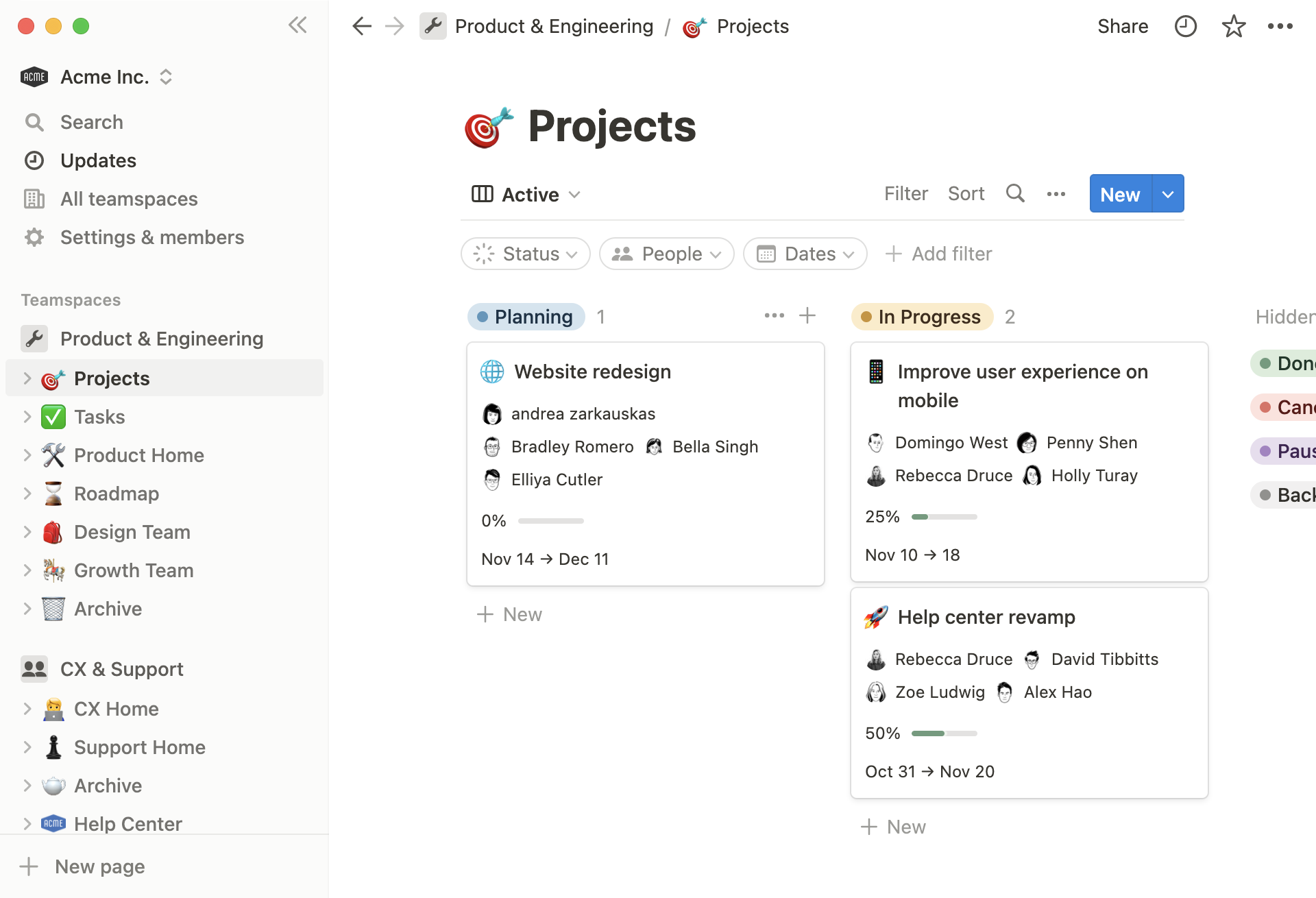

I like how Notion’s powerful database functionality helps users create relational databases that link various pieces of information, enabling a more interconnected and comprehensive knowledge management system.
The platform also offers extensive customization options, allowing users to tailor their workspaces to specific workflows. Users can add different types of content, such as text, images, videos, and embeds, to create rich, interactive documents.
Pros:
- Real-time collaborative editing with simultaneous comments
- Powerful database views (table, board, calendar, gallery) to structure any information
- Task assignment, reminders, and project tracking within the same workspace
- Integrations with Slack, Google Drive, Trello, and more
Cons:
- Without strong governance and clear ownership, Notion workspaces can quickly become disorganized
- Not built for customer-facing help centers lacks dedicated self-service portal features
User Rating: 4.7/5 (Capterra)
Pricing: Paid plans start at $10/seat/month.
6. Document360 – Best for Creating Online Documentation
In my last company, we were using Document 360 to create and structure online documentation. It helped enhance productivity and ensure that knowledge is readily available.


Its robust content editor supports rich text formatting, multimedia embedding, and Markdown, allowing users to create detailed and visually appealing documents that include text, images, videos, and more.
The platform’s advanced search functionality ensures that users can quickly find the necessary information. It indexes all content, providing relevant results based on keywords and phrases. It also supports categorization and tagging, further enhancing the organization and retrieval of information.
Pros:
- Multi-author collaboration with role-based permissions and approval workflows
- Comprehensive analytics showing user engagement, popular content, and failed searches
- AI writing assistant, AI chatbot, and SEO automation
- Supports both WYSIWYG and Markdown editors
Cons:
- Pricing is on the higher end and not transparent — smaller teams may find it hard to budget without a sales call
- The setup and onboarding process has a steeper learning curve compared to simpler tools
User Rating: 4.7/5 (G2)
Pricing: Custom pricing on request.
7. Knowmax – Best for Turning Technical Documents Into Interactive Workflows
We’re leveraging Knowmax to elevate our customer experience with AI-powered, interactive knowledge delivery across all touchpoints.


It delivers a unified knowledge hub powered by a Google-like search engine, ensuring agents and customers can instantly access accurate, contextual information across chat, voice, email, and web.
Its standout feature is no-code Cognitive Decision Trees, which transform complex SOPs into guided, step-by-step workflows that drive accuracy and consistency in service delivery. For seamless integration, Knowmax supports omnichannel publishing and CRM connectivity, enabling knowledge to be used across support tools, customer portals, and contact center systems.
Pros:
- AI-enhanced, unified knowledge base with powerful natural language search
- No-code Cognitive Decision Trees that turn SOPs into guided workflows
- Visual step-by-step guides that improve self-service comprehension
- Omnichannel publishing and CRM connectivity
Cons:
- Pricing is not publicly listed, which makes it harder to evaluate fit without a demo
- Primarily built for contact center use cases less versatile for general internal knowledge needs
User Rating: 4.5/5 (G2)
Pricing: Custom pricing on request.
8. KMS Lighthouse — Best for AI-Powered Knowledge Management
We rely on KMS Lighthouse to deliver high-impact, scalable knowledge systems across customer service, IT, and field operations. Its strength lies in its ability to deliver instant, accurate answers to both agents and customers via a centralized, user-friendly system.


At its core, KMS Lighthouse features intuitive natural language search and omnichannel access (chat, voice, portals), ensuring teams find the correct information quickly. It integrates natively with platforms like Salesforce, Zendesk, Microsoft Teams, and others—supporting seamless workflow connectivity and reducing context-switching.
Pros:
- Instant natural language search across all channels
- Strong analytics to measure impact, identify knowledge gaps, and track content usage
- Native integrations with Salesforce, Zendesk, and Microsoft Teams
- Demonstrated ROI in onboarding speed and operational efficiency
Cons:
- Enterprise-focused pricing and implementation make it inaccessible for small or mid-sized teams
- The interface can feel dated compared to more modern knowledge management platforms
User Rating: 4.5/5 (Capterra)
Pricing: Custom pricing on request.
9. Tettra – Best for Saving Reusable Answers and Keeping Them Up-to-Date With Automation
Tettra’s integration with various communication platforms, such as Slack and Microsoft Teams, enables users to pull relevant information directly from their conversations, ensuring that knowledge sharing is integrated into the team’s workflow.
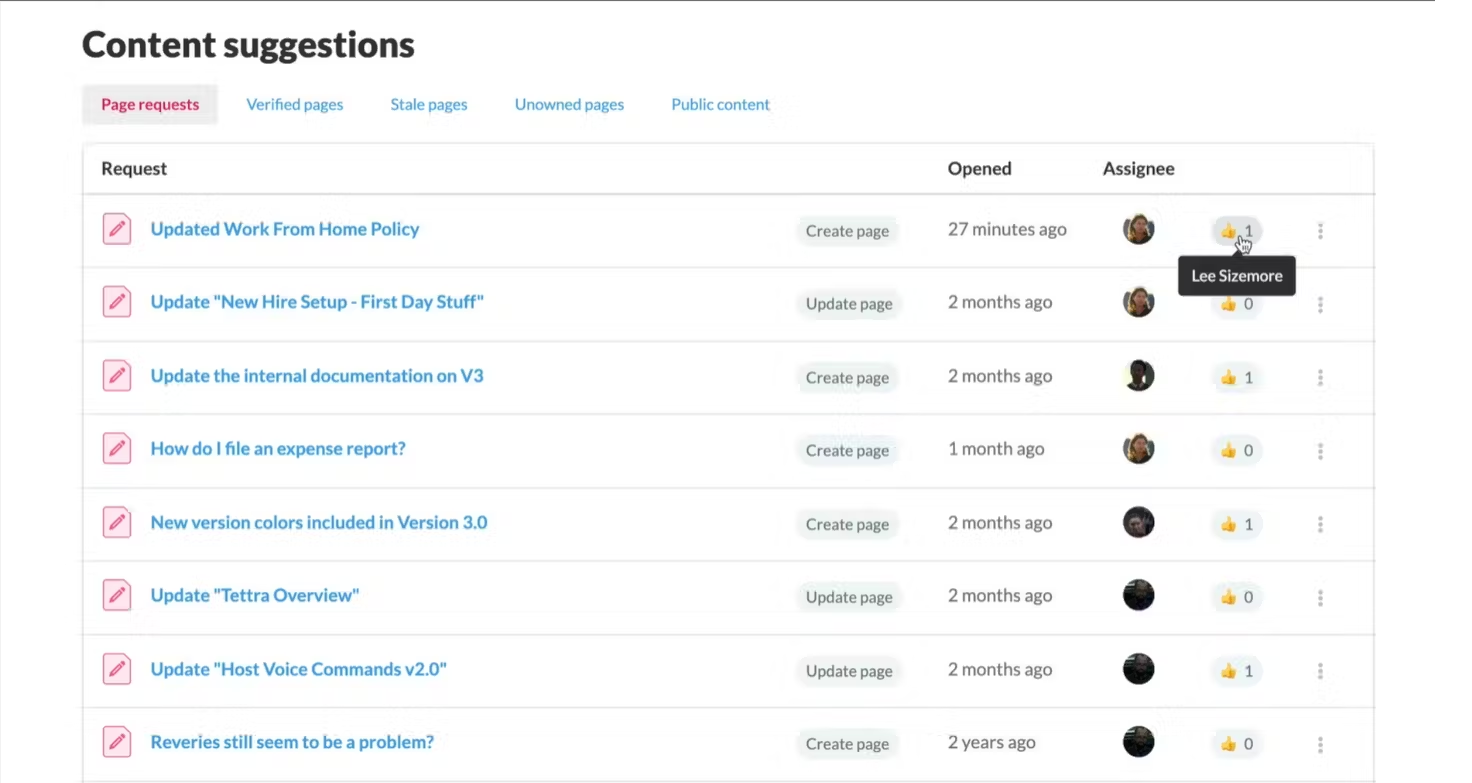

The platform’s robust content creation and management system allows users to create pages, organize them into categories, and link related content to form a comprehensive knowledge base. This highly customizable structure will enable teams to tailor the knowledge base to their needs.
Pros:
- Version control to track changes and revert to earlier drafts
- Powerful search to quickly find the exact article needed
- Integrations with Slack, Microsoft Teams, Google Drive, GitHub, and Trello
- Automation features that flag outdated content for review
Cons:
- Limited formatting and media options make it less suited for rich, visual documentation
- Analytics and reporting are basic compared to enterprise-grade platforms
User Rating: 4.7/5 (G2)
Pricing: Paid plans start at $4/user/month.
10. Bloomfire – Best for Collaborative Authoring
Bloomfire helps organizations efficiently capture, share, and leverage collective knowledge. I like how its intuitive content creation and management tools allow users to easily create, upload, and organize content in various formats, including documents, videos, and images.
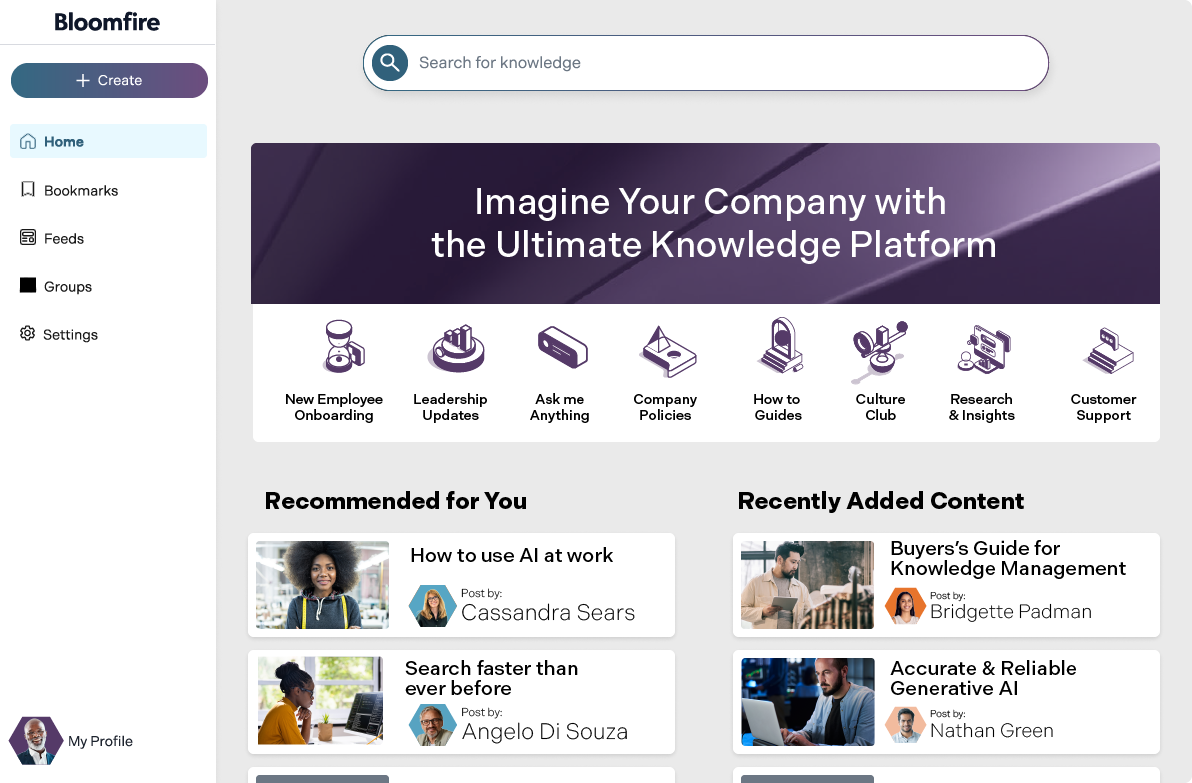

The platform’s search functionality is powered by artificial intelligence, enabling users to quickly find relevant information by indexing the entire content library. This AI-driven search not only considers keywords but also understands the context, providing more accurate and helpful search results.
Pros:
- AI and semantic search that indexes the full content library, including video transcriptions
- Intuitive content creation tools supporting documents, videos, and images
- Robust analytics and reporting on content usage and engagement
- Integrations with Slack, Salesforce, and Microsoft Teams
Cons:
- Custom pricing with no public tiers makes cost comparison difficult without a sales conversation
- Better suited for large enterprise teams — smaller organizations may find the feature set more than they need
User Rating: 4.6/5 (G2)
Pricing: Custom pricing on request.
How Did I Evaluate These Knowledge Management Software?
Choosing the wrong knowledge management tool is expensive. Here’s exactly how I avoided that mistake.
- User Reviews and Ratings: I went straight to G2, Capterra, and Gartner for verified user feedback, focusing on recurring complaints and what teams actually praised after six months of real use.
- Core Features and Functionality: I tested each tool hands-on, specifically looking at search quality, content creation speed, team collaboration, and whether the analytics told me anything actionable or just looked pretty.
- Ease of Use: I asked one simple question: can a non-technical team member get this running without a training session or a call with sales?
- Customer Support Quality: I paid attention to how each vendor showed up during setup, when things broke, and whether ongoing support felt like a partnership or a ticket queue.
- Value for Money: I compared pricing against actual feature depth, because a $200/month tool that does three things well is not a bargain for a team of ten.
- Personal Experience: I used each platform myself, cross-checked my impressions with peers who run similar operations, and factored in input from people who live inside these tools daily.
What Are My Top 3 Picks for the Best Knowledge Management Software?
Still comparing options? Here’s where I’d send most teams:
1. ProProfs Knowledge Base
ProProfs Knowledge Base is my top pick for teams that want to create a help center, internal wiki, or product manual quickly, without IT involvement. Its AI-powered writer, 100+ templates, advanced search, and role-based permissions make it one of the most complete, user-friendly platforms available. The Forever Free plan means you can get started today with zero risk.
2. Guru
Guru wins for teams that need knowledge delivered inside existing tools rather than in a separate tab. Its browser extension, verification workflows, and AI search make it the best choice for fast-moving support or sales teams.
3. Slite
Slite is the right call for remote-first or growing teams that want a clean, collaborative space for SOPs and documentation. It’s simpler than Confluence, smarter than a shared Google Doc, and easy for any team member to adopt.
FREE. All Features. FOREVER!
Try our Forever FREE account with all premium features!
What Are the Common Challenges in Knowledge Management and How to Fix Them?
Even well-chosen tools run into real-world roadblocks. Here are the five most common ones and practical ways to address them:
1. Scattered Data Makes Everything Harder to Find
When documents live across PDFs, emails, and five different tools, employees waste hours hunting down basic information that should take seconds to find. That time loss compounds fast across teams, and the frustration alone is enough to make people stop using the system entirely.
How to Fix it: Centralize everything into a single hub with AI-powered search, which works two ways: the built-in assistant scans your knowledge base instantly, and AI article suggestions surface relevant content even when users search in natural language.


2. Poor Collaboration Leads to Outdated, Duplicated Content
Teams duplicate effort or work with outdated content when there is no clear review or approval process in place. Without structured ownership, the same article gets rewritten three times, conflicting versions circulate, and no one knows which one is actually current or accurate.
How to Fix it: Set up role-based permissions, version histories, and structured review workflows. Assign content owners to each department and schedule quarterly audits.


3. Weak Access Controls Create Compliance and Security Gaps
Unrestricted access and poor governance put organizations at risk of accidental data leaks or non-compliance with regulations like GDPR or HIPAA. One wrong permission setting can expose sensitive internal content to the wrong audience, and most teams only discover this after the damage is done.
How to Fix it: Implement strict access controls, audit logs, IP restrictions, and compliance-friendly features like encryption and revision history.
4. Employees Ignore New Systems and Default to Old Habits
Employees stick to old habits, storing files in email threads or personal drives, when a new KM system does not feel meaningfully better than what they already use. If employee onboarding is slow and the value is not immediately obvious, adoption stalls before the tool ever gets a real chance.
How to Fix it: Roll out in phases with targeted training, highlight quick wins like faster ticket resolution, and appoint internal KM champions who drive adoption peer-to-peer.
5. Support Volume Stays High Even When Documentation Exists
If employees or customers do not trust or engage with your documentation, support tickets stay high, no matter how much content you have published. The problem is rarely the volume of articles; it is that users cannot find what they need or do not believe the answers are reliable.
How to Fix it: Use built-in analytics to track failed searches. Improve low-rated content, fill gaps, and embed self-service portals directly inside the tools your users already work in.
Knowledge Management Software vs. Related Tools: What’s the Difference?
Teams often confuse knowledge management platforms with other tools. Here’s how they differ:
| Tool Type | Primary Purpose | Best For |
| Knowledge Management Software | Centralize and share organizational knowledge — SOPs, FAQs, manuals, guides | Employees and customers who need fast, accurate answers |
| Project Management Tools (Asana, Monday.com) | Plan, assign, and track work and deadlines | Execution and task tracking |
| CRM (Salesforce, HubSpot) | Manage customer relationships and sales pipelines | Sales and customer data |
| LMS (Learning Management Systems) | Deliver structured training courses with assessments | Employee learning and certification |
| Intranet (SharePoint) | Company-wide communication and file storage | Announcements, org charts, document storage |
Who Should Use Knowledge Management Software?
What is knowledge management software really for, when it comes to specific teams? Almost every department benefits, but these are the highest-impact use cases:
- Customer Support Teams: Reduce repetitive tickets and empower agents to find answers instantly without escalating
- HR and People Operations: Centralize employee handbooks, onboarding guides, benefits information, and policy updates
- IT Teams: Maintain runbooks, troubleshooting guides, and internal SOPs that field teams can access from anywhere
- Sales Teams: Keep product information, competitive intel, and pricing guides current and instantly accessible
- Operations and Compliance: Maintain SOPs and audit-ready documentation with version control and access logs
- Training and L&D: Create and deliver how-to content that employees can reference during and after onboarding
Create, Organize & Share Knowledge With the Best Knowledge Management Software
Scattered information is one of the most expensive invisible costs in any organization. When knowledge is siloed in email threads, outdated PDFs, and forgotten drives, your team pays for it in productivity, customer experience, and employee frustration every single day.
The tools covered here each solve the core problem: centralizing knowledge, making it searchable, and keeping it accurate over time. The right one depends on your team size, technical requirements, and how your people work.
If you’re looking for a place to start, ProProfs Knowledge Base is a strong default for most teams. It’s fast to set up, intuitive for non-technical authors, AI-powered for both search and content creation, and offers a genuinely useful free plan with no time limit.
Whether you’re building a customer-facing help center, an internal employee wiki, or a product manual, it covers all three without requiring a developer.
Frequently Asked Questions
What is knowledge management software used for?
Knowledge management software is used to capture, organize, store, and share information across an organization. Teams use it to centralize SOPs, FAQs, training guides, product documentation, and help articles so employees and customers can find accurate answers quickly — without emailing someone or creating a support ticket.
How is knowledge management software different from a wiki?
A wiki is a basic tool for writing and linking pages. Knowledge management software goes further — it adds AI-powered search, role-based permissions, analytics, version control, approval workflows, and integrations with CRM, help desk, and communication tools. It's a system, not just a document repository.
How long does it take to set up a knowledge base?
For small teams using a platform like ProProfs Knowledge Base, you can have a functional knowledge base live within a day. For enterprise rollouts with content migration, integrations, and governance setup, expect one to three months.
Is knowledge management software secure?
Most enterprise-grade platforms offer SSL encryption, role-based access controls, audit logs, IP restrictions, and compliance with GDPR or HIPAA depending on your industry. Always verify the specific security certifications before selecting a vendor.
What are the biggest signs that my team needs knowledge management software?
Key signals include: employees frequently ask the same questions repeatedly, support ticket volume is high despite existing documentation, new hires take too long to get productive, important knowledge lives only in one person's head, and documents are scattered across drives, emails, and local folders.
Can knowledge management software reduce support tickets?
Yes. When customers can find answers through a self-service help center, they contact support less often. Teams using ProProfs Knowledge Base integrated with live chat report support ticket reductions of up to 80%. The key is making sure the help content is accurate, easy to find, and regularly updated.
How do I keep my knowledge base up to date?
Assign content owners to each section and schedule quarterly reviews. Use your analytics dashboard to identify articles with high failure rates in search or low ratings — those are your priority updates. Tools like Tettra and Guru have built-in automation that flags stale content for review automatically.
FREE. All Features. FOREVER!
Try our Forever FREE account with all premium features!

 We'd love your feedback!
What did you like & how can we make it even better?
 Thanks for your feedback!
 Ask Your Question
Have a question? Get expert help to make your decision easier.