

Save contact form 7 entries to MongoDB database. Enable PHP MongoDB extension and just install the CF7 MongoDB plugin. Then add database credentials.
Finished 🙂 Everything automatic.
Step 1: Enable PHP MongoDB extension
Install the extension from cPanel.
Go to cPanel > Select PHP version > Extensions and enable MongoDB.
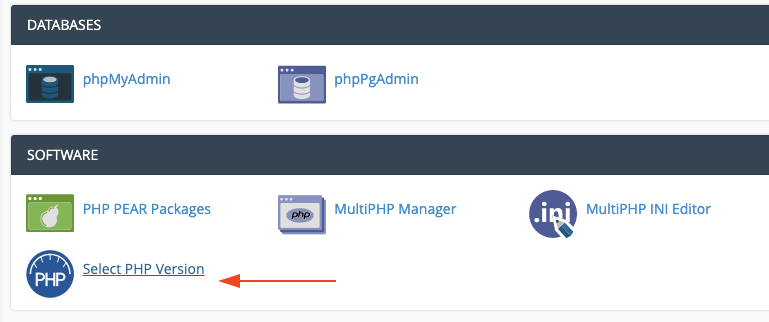

Cpanel PHP Extensions
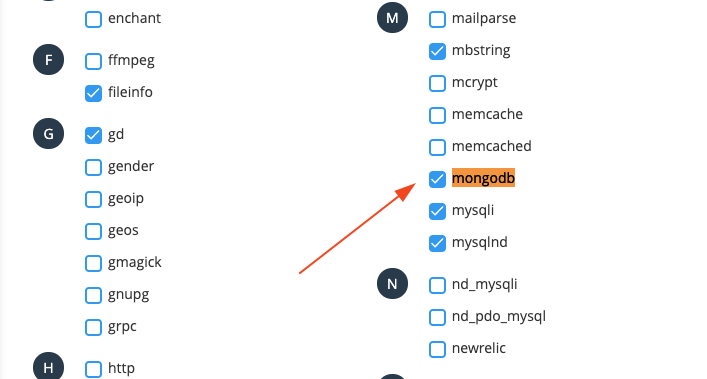

Or
Install PHP MongoDB extension on Linux:
|
1 |
sudo pecl install mongodb |
Add the following code in the php.ini file and restart the server.
extension=mongodb.so
Step 2: Install Contact Form 7 MongoDB Plugin
Purchase cf7 mongo DB plugin then download the zip file. Then go to wp-admin > plugins > upload zip file and activate the plugin.
Step 3: Add MongoDB Credentials
Go to wp-admin > Monogo Config (sidebar) and add credentials and database name.


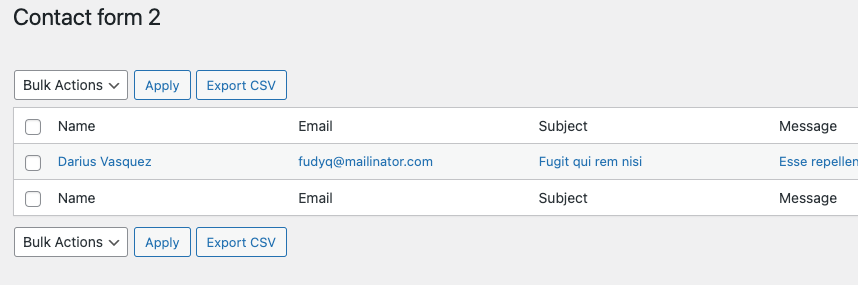
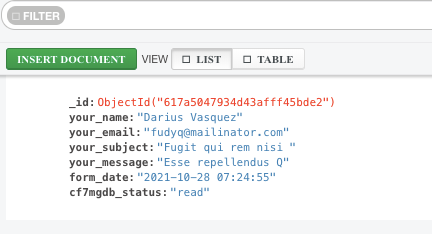
Now, it will collect data from the frontend cf7 form.
WordPress CF7 MongoDB Admin

MongoDB Compass

Unlimited installation license – Just $79
More Plugins