> ## Documentation Index
> Fetch the complete documentation index at: https://docs.rootly.com/llms.txt
> Use this file to discover all available pages before exploring further.
# GitHub
> Track deployments, create and update issues, fetch commits, and enrich PR links with automatic status tracking for incident management.
Connect GitHub to Rootly to automate issue tracking, surface commit context during incidents, and capture deployment signals as they happen.
**This integration allows you to:**
* Create and update GitHub issues from incident workflows
* Fetch recent commits across repositories during an incident
* Receive push, pull request, and issue events as Rootly pulses
* Automatically enrich GitHub PR links shared in Slack with live status updates
## Before You Begin
You must be an **Owner** of your GitHub organization and an **Admin** of your Rootly account to complete this installation.
Rootly recommends using a **service account** so the integration continues to work if a user leaves your organization.
This integration uses a two-step process:
1. Install the **rootlyhq** GitHub App from the GitHub Marketplace
2. Connect GitHub to Rootly via OAuth
## Permissions
The following GitHub App permissions are required:
| Permission | Access Level |
| ------------- | ------------ |
| Checks | Read |
| Code | Read |
| Deployments | Read |
| Metadata | Read |
| Pull Requests | Read |
| Issues | Read + Write |
## Installation
### Step 1: Install the GitHub Marketplace App
Navigate to the GitHub Apps page for your organization. Replace `` with your organization's name:
```text theme={null}
https://github.com/organizations//settings/installations
```
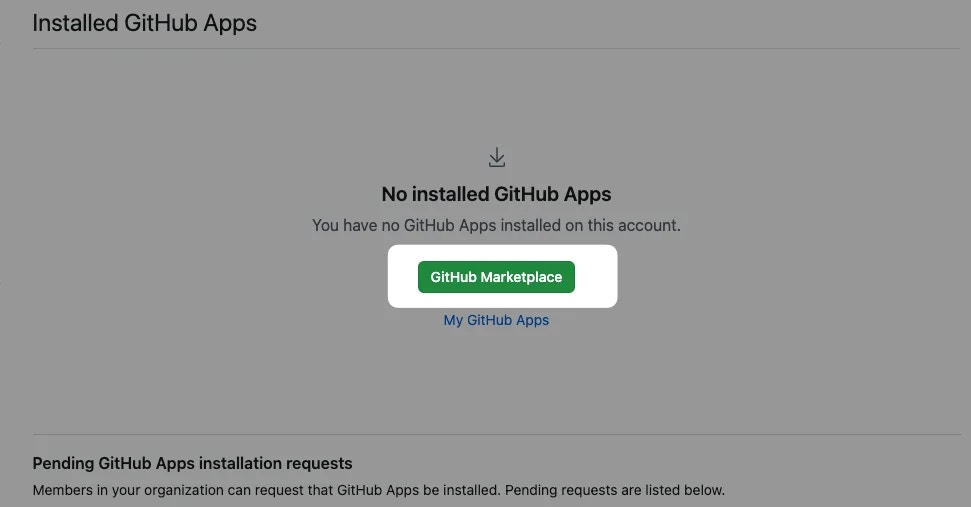
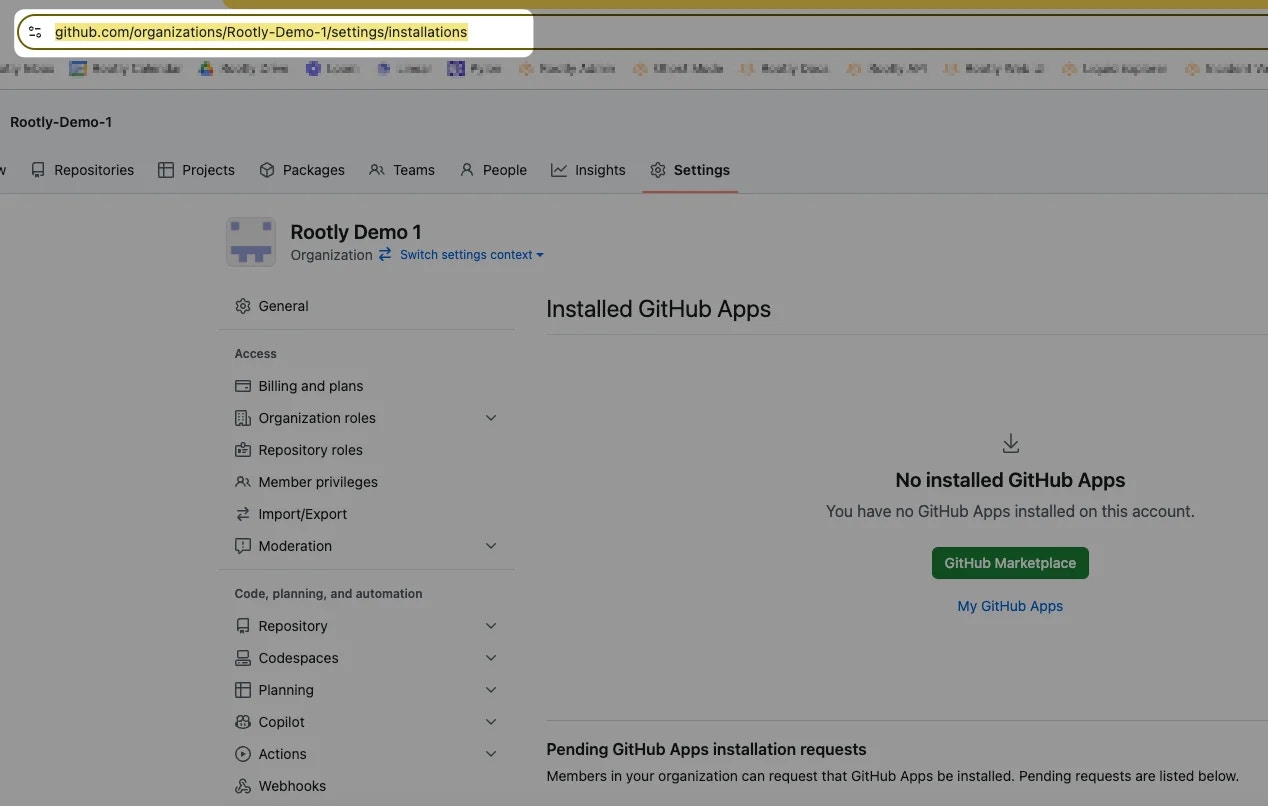 Click **GitHub Marketplace**.
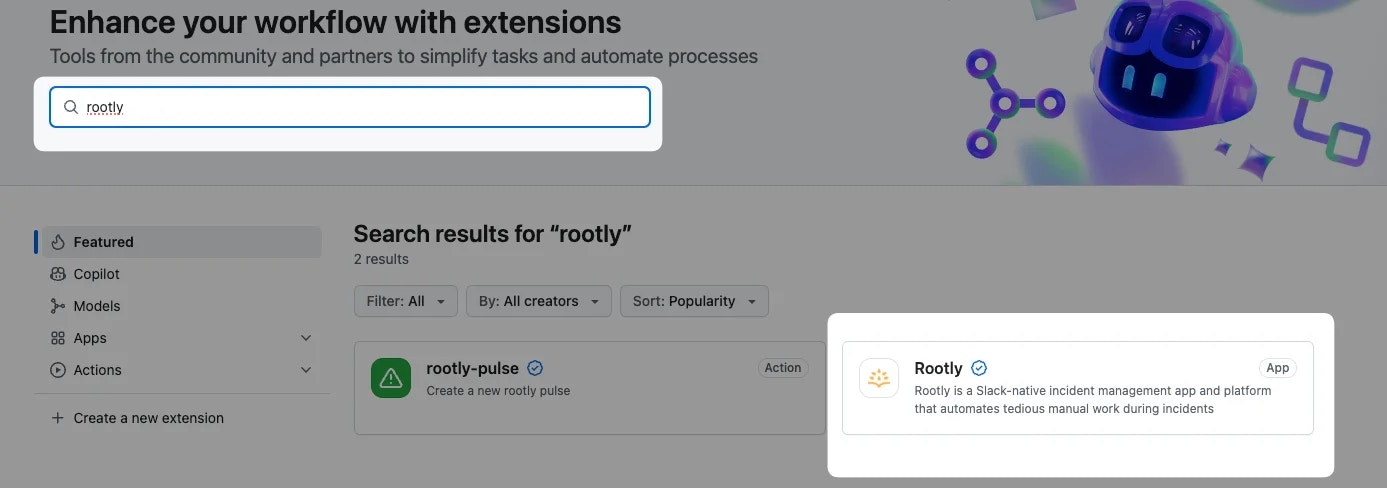
 Search for **rootly** and click on the Rootly app.
 Click **Add** to begin the installation.
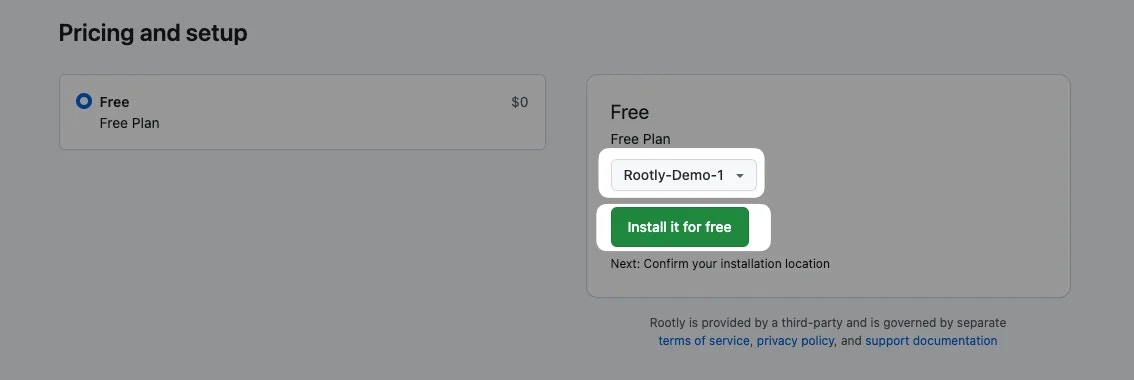
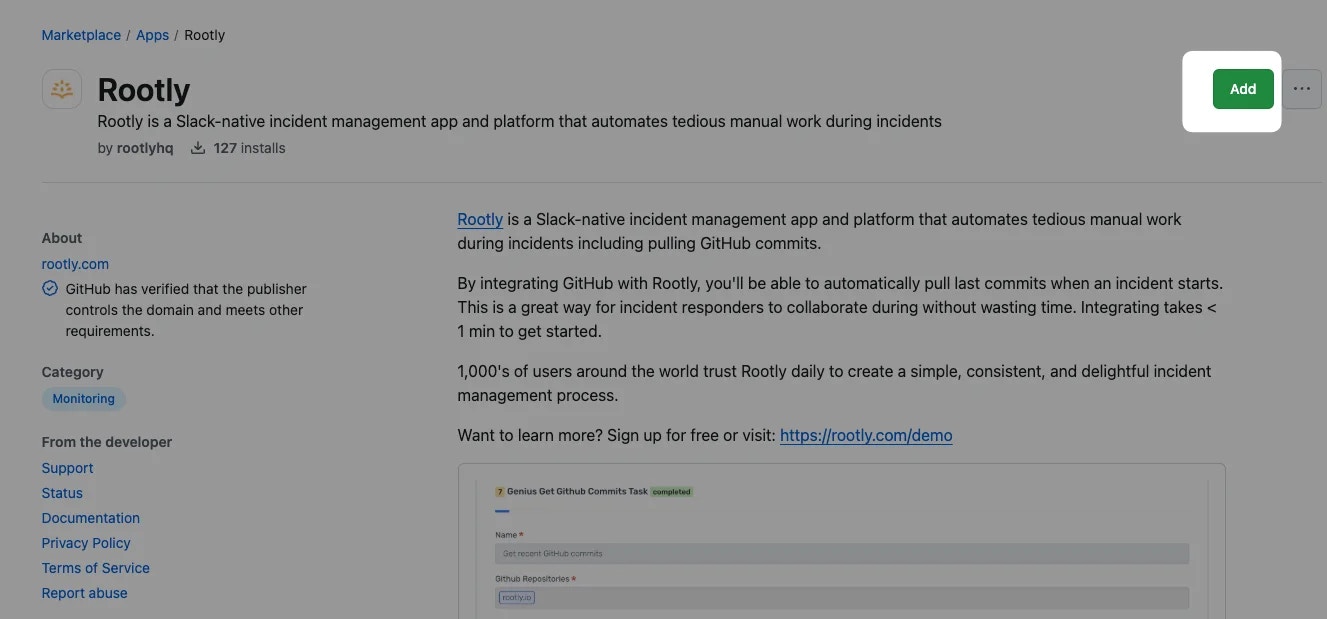 If you belong to multiple GitHub organizations, select the correct one and click **Install it for free**.
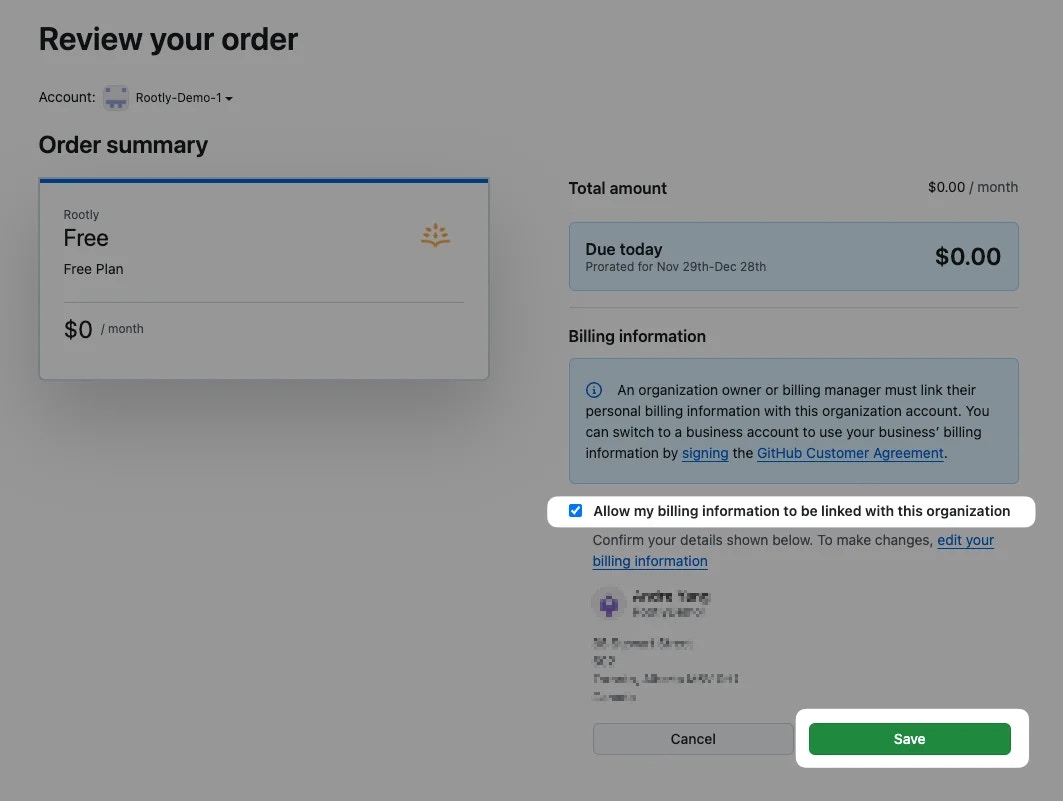
 Confirm the correct organization is selected. Check **Allow my billing information to be linked with this organization** and click **Save**.
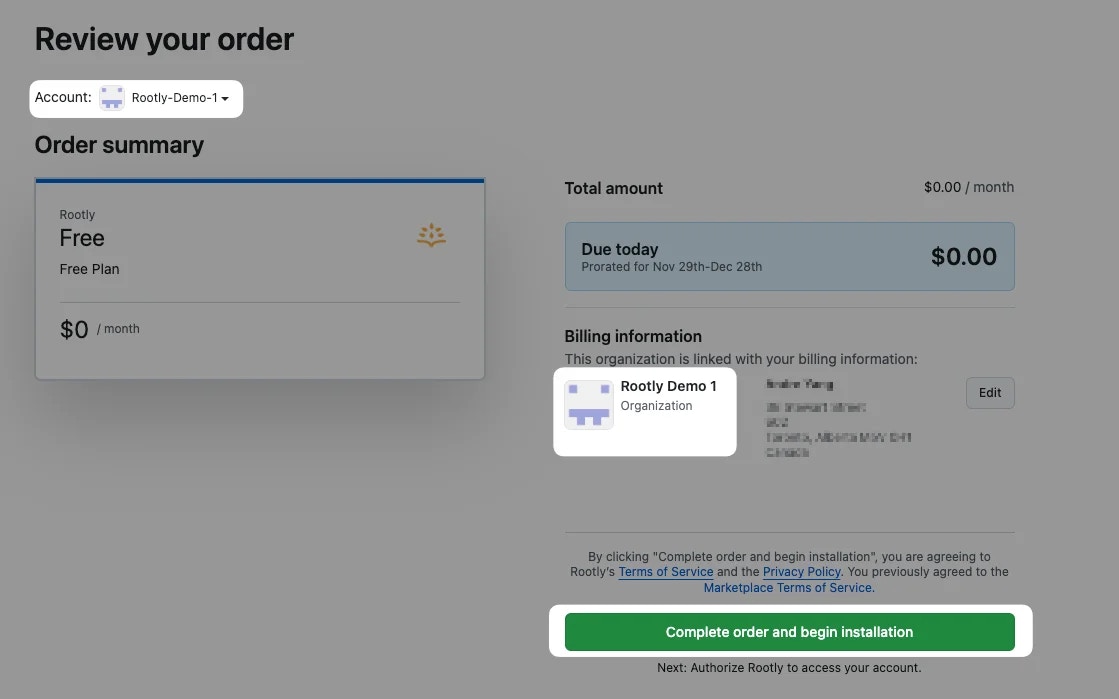
 Click **Complete order and begin installation**.
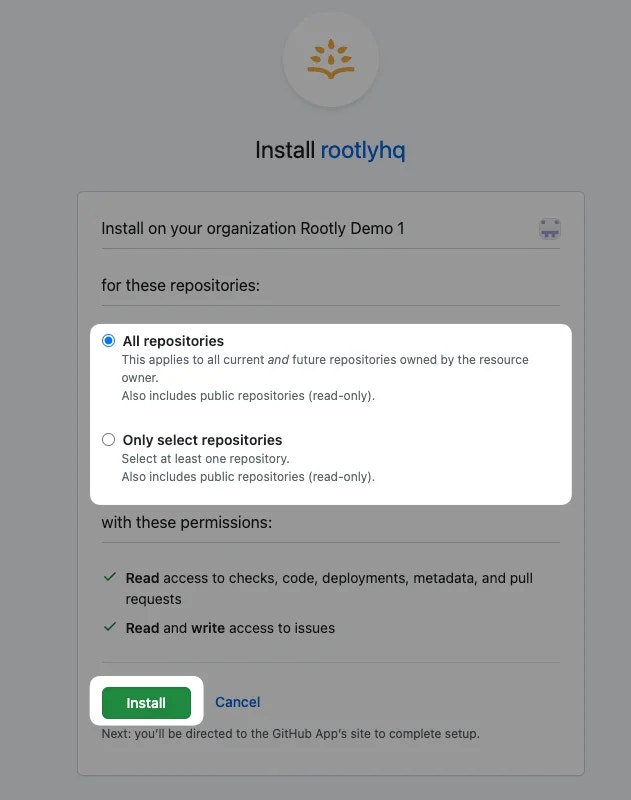
 Select the desired **scope of access** (all repositories or specific repositories) and click **Install**.
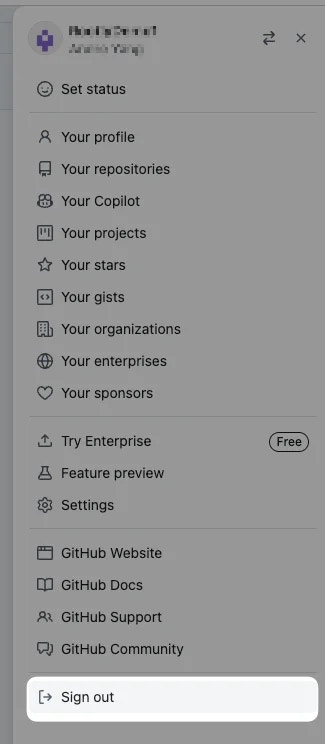
 Log out of your GitHub account before proceeding. This is required so Rootly can re-establish the connection under the correct account.
 ### Step 2: Connect GitHub to Rootly
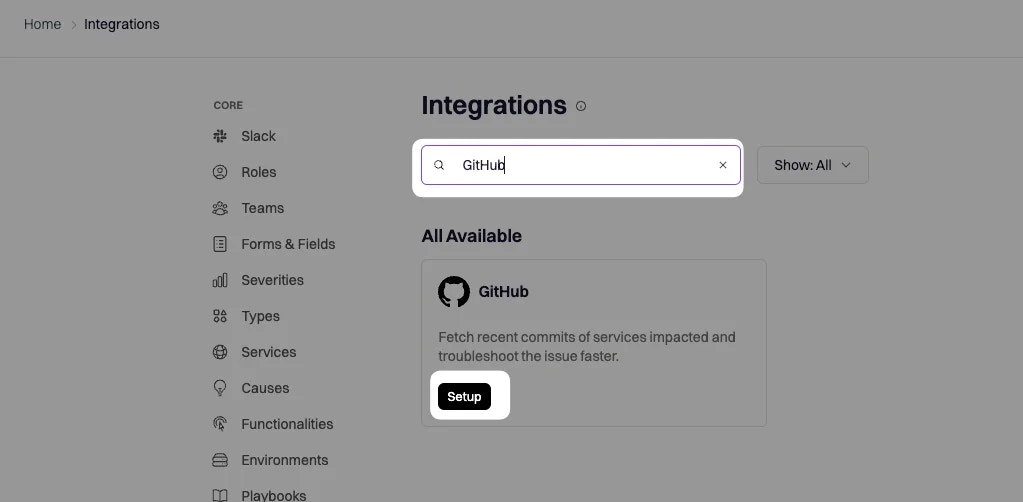
Navigate to the [Integrations](https://rootly.com/account/integrations) page in Rootly and search for **github**.
### Step 2: Connect GitHub to Rootly
Navigate to the [Integrations](https://rootly.com/account/integrations) page in Rootly and search for **github**.
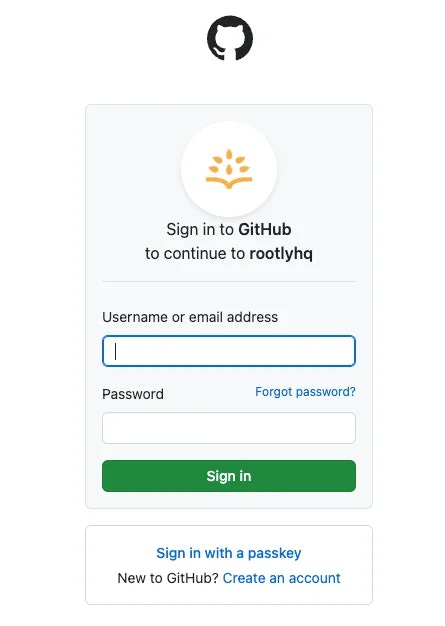
 You'll be prompted to sign in to GitHub to authorize the connection to your organization.
 Click **Save** to complete the setup.
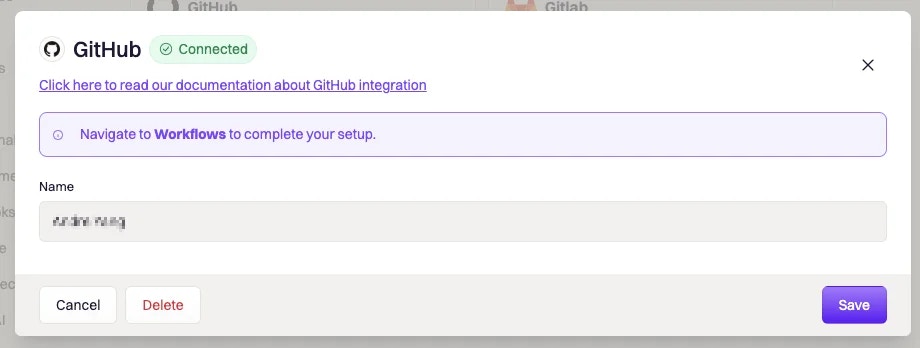 GitHub is now connected. You can use the **Create Issue**, **Update Issue**, and **Get Commits** workflow actions, and GitHub events will begin flowing in as pulses.
## Workflow Actions
These actions are available in **Incident Workflows** and **Alert Workflows**.
### Create a GitHub Issue
Creates a new issue in the specified GitHub repository and links it to the Rootly incident or action item.
| Field | Description | Required |
| ----------------------- | ------------------------------------------------------------------------------- | -------- |
| **Repository** | The GitHub repository where the issue will be created (for example, `org/repo`) | Yes |
| **Title** | Issue title. Supports Liquid templating (for example, `{{ incident.title }}`) | Yes |
| **Body** | Issue body/description. Supports Liquid templating | No |
| **Labels** | Comma-separated list of label names to apply to the issue | No |
| **Issue Type** | The type of issue to create (for example, `Bug`, `Feature`, `Task`) | No |
| **Parent Issue Number** | Issue number of the parent issue. Use this to create a sub-issue | No |
### Update a GitHub Issue
Updates an existing GitHub issue linked to the incident or action item.
| Field | Description | Required |
| -------------- | ------------------------------------------------------------------------------------------------------------------------------------------- | -------- |
| **Issue ID** | The ID of the GitHub issue to update. Use the stored ID from a prior Create Issue action | Yes |
| **Title** | New title for the issue. Supports Liquid templating | No |
| **Body** | New body/description. Supports Liquid templating | No |
| **Labels** | Comma-separated list of label names to apply | No |
| **Issue Type** | Updated issue type | No |
| **Completion** | Set to **Auto** to mirror the incident or action item status. Closes the issue when the incident resolves or the action item is marked done | No |
When **Completion** is set to **Auto**, Rootly will automatically close the GitHub issue when the linked incident is resolved or the linked action item is completed.
### Get Commits
Fetches recent commits from one or more GitHub repositories and optionally posts them to the incident timeline or a Slack channel.
| Field | Description | Required |
| --------------------------------- | ----------------------------------------------------------------------------------------------------------------------------------------------------------------------- | ----------- |
| **Services Impacted by Incident** | When enabled (default), automatically queries the GitHub repositories linked to the services impacted by the incident. Disable this to specify repositories manually | No |
| **Service IDs** | Rootly service IDs whose linked GitHub repositories will be queried. Required when **Services Impacted by Incident** is disabled and **Repository Names** is not set | Conditional |
| **Repository Names** | Explicit list of GitHub repository names to query (for example, `org/repo`). Required when **Services Impacted by Incident** is disabled and **Service IDs** is not set | Conditional |
| **Branch** | The branch to fetch commits from. Defaults to `master` | No |
| **Past Duration** | How far back to look for commits (for example, `1h`, `30m`) | No |
| **Post to Incident Timeline** | When enabled, appends fetched commits as an event in the incident timeline | No |
| **Post to Slack Channels** | Slack channel names to post the commit list to | No |
When **Services Impacted by Incident** is disabled, either **Service IDs** or **Repository Names** must be provided. Each service used must have a GitHub repository configured in its settings.
## PR Link Enrichment
When an engineer pastes a GitHub PR URL into the incident's Slack channel, Rootly automatically:
1. Detects the PR link and attaches it to the incident
2. Tracks the PR status (open, approved, merged) in real time
3. Posts status updates in Slack as the PR progresses
4. Adds each status change as an event in the incident timeline
## Inbound Events (Pulses)
Rootly receives GitHub webhook events and stores them as **pulses** — timestamped signals you can correlate with incidents.
### Supported Events
| Event | Trigger |
| -------------------------- | ------------------------------------------- |
| **Push** | Any push to any repository branch |
| **Pull Request: Opened** | A new pull request is opened |
| **Pull Request: Closed** | A pull request is closed without merging |
| **Pull Request: Merged** | A pull request is merged |
| **Pull Request: Approved** | A pull request review approval is submitted |
| **Issues** | A GitHub issue is opened, closed, or edited |
### Pulse Labels
Each pulse includes the following labels for filtering and routing:
| Label | Description | Events |
| ------------ | -------------------------------------------------- | --------------------- |
| `action` | Event action (for example, `push`, `pr_merged`) | All |
| `repository` | Repository name where the event originated | All |
| `ref` | Branch or tag ref (for example, `refs/heads/main`) | Push, Pull Request |
| `base` | Target branch of the pull request | Pull Request (merged) |
| `merged_by` | GitHub login of the user who merged the PR | Pull Request (merged) |
## Secret Scanning
GitHub scans public repositories for known secret patterns, including Rootly API tokens.
Rootly has partnered with GitHub's secret scanning program. When a Rootly token is detected in a public repository, GitHub notifies Rootly, which then alerts workspace owners and allows them to revoke the token within seconds.
GitHub Advanced Security customers can additionally enable [push protection](https://github.blog/changelog/2022-04-04-secret-scanning-prevents-secret-leaks-with-protection-on-push/) to block Rootly tokens from entering repositories at push time.
* [Learn more about secret scanning](https://docs.github.com/en/github/administering-a-repository/about-secret-scanning)
* [Partner with GitHub on secret scanning](https://docs.github.com/en/developers/overview/secret-scanning/)
## Troubleshooting
* Confirm the repository name is in `org/repo` format
* Verify the connected GitHub account has write access to the target repository
* Check that the **rootlyhq** GitHub App is still installed and has access to the repository
* Confirm the branch name is correct and exists in the repository
* Check that the **Past Duration** window is wide enough to include recent commits
* When using Service IDs, verify each service has a GitHub repository configured in its settings
* The incident must have an active Slack channel
* The PR URL must be pasted directly in the incident Slack channel (not a thread)
* Confirm the GitHub App has **Read** access to pull requests
* Navigate to the Rootly integrations page and verify the GitHub connection is active
* Re-authenticate if the OAuth token has expired
* Confirm the **rootlyhq** GitHub App is installed and the webhook is active in your GitHub organization settings
## Uninstall
Uninstalling requires two steps — removing the integration from Rootly and uninstalling the GitHub App.
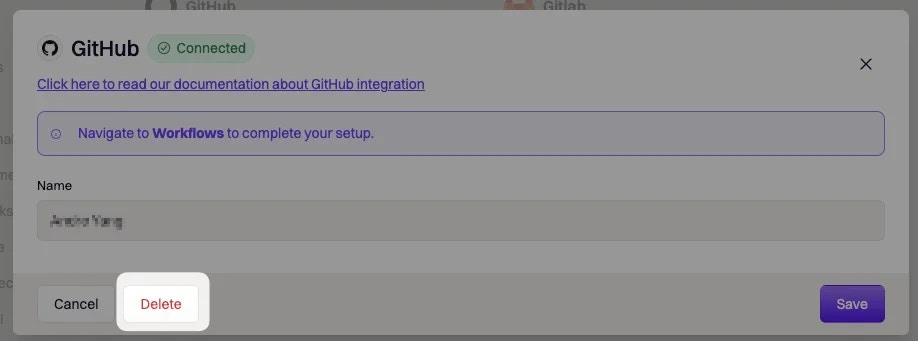
Delete the GitHub integration from Rootly via the **Integrations** page.
GitHub is now connected. You can use the **Create Issue**, **Update Issue**, and **Get Commits** workflow actions, and GitHub events will begin flowing in as pulses.
## Workflow Actions
These actions are available in **Incident Workflows** and **Alert Workflows**.
### Create a GitHub Issue
Creates a new issue in the specified GitHub repository and links it to the Rootly incident or action item.
| Field | Description | Required |
| ----------------------- | ------------------------------------------------------------------------------- | -------- |
| **Repository** | The GitHub repository where the issue will be created (for example, `org/repo`) | Yes |
| **Title** | Issue title. Supports Liquid templating (for example, `{{ incident.title }}`) | Yes |
| **Body** | Issue body/description. Supports Liquid templating | No |
| **Labels** | Comma-separated list of label names to apply to the issue | No |
| **Issue Type** | The type of issue to create (for example, `Bug`, `Feature`, `Task`) | No |
| **Parent Issue Number** | Issue number of the parent issue. Use this to create a sub-issue | No |
### Update a GitHub Issue
Updates an existing GitHub issue linked to the incident or action item.
| Field | Description | Required |
| -------------- | ------------------------------------------------------------------------------------------------------------------------------------------- | -------- |
| **Issue ID** | The ID of the GitHub issue to update. Use the stored ID from a prior Create Issue action | Yes |
| **Title** | New title for the issue. Supports Liquid templating | No |
| **Body** | New body/description. Supports Liquid templating | No |
| **Labels** | Comma-separated list of label names to apply | No |
| **Issue Type** | Updated issue type | No |
| **Completion** | Set to **Auto** to mirror the incident or action item status. Closes the issue when the incident resolves or the action item is marked done | No |
When **Completion** is set to **Auto**, Rootly will automatically close the GitHub issue when the linked incident is resolved or the linked action item is completed.
### Get Commits
Fetches recent commits from one or more GitHub repositories and optionally posts them to the incident timeline or a Slack channel.
| Field | Description | Required |
| --------------------------------- | ----------------------------------------------------------------------------------------------------------------------------------------------------------------------- | ----------- |
| **Services Impacted by Incident** | When enabled (default), automatically queries the GitHub repositories linked to the services impacted by the incident. Disable this to specify repositories manually | No |
| **Service IDs** | Rootly service IDs whose linked GitHub repositories will be queried. Required when **Services Impacted by Incident** is disabled and **Repository Names** is not set | Conditional |
| **Repository Names** | Explicit list of GitHub repository names to query (for example, `org/repo`). Required when **Services Impacted by Incident** is disabled and **Service IDs** is not set | Conditional |
| **Branch** | The branch to fetch commits from. Defaults to `master` | No |
| **Past Duration** | How far back to look for commits (for example, `1h`, `30m`) | No |
| **Post to Incident Timeline** | When enabled, appends fetched commits as an event in the incident timeline | No |
| **Post to Slack Channels** | Slack channel names to post the commit list to | No |
When **Services Impacted by Incident** is disabled, either **Service IDs** or **Repository Names** must be provided. Each service used must have a GitHub repository configured in its settings.
## PR Link Enrichment
When an engineer pastes a GitHub PR URL into the incident's Slack channel, Rootly automatically:
1. Detects the PR link and attaches it to the incident
2. Tracks the PR status (open, approved, merged) in real time
3. Posts status updates in Slack as the PR progresses
4. Adds each status change as an event in the incident timeline
## Inbound Events (Pulses)
Rootly receives GitHub webhook events and stores them as **pulses** — timestamped signals you can correlate with incidents.
### Supported Events
| Event | Trigger |
| -------------------------- | ------------------------------------------- |
| **Push** | Any push to any repository branch |
| **Pull Request: Opened** | A new pull request is opened |
| **Pull Request: Closed** | A pull request is closed without merging |
| **Pull Request: Merged** | A pull request is merged |
| **Pull Request: Approved** | A pull request review approval is submitted |
| **Issues** | A GitHub issue is opened, closed, or edited |
### Pulse Labels
Each pulse includes the following labels for filtering and routing:
| Label | Description | Events |
| ------------ | -------------------------------------------------- | --------------------- |
| `action` | Event action (for example, `push`, `pr_merged`) | All |
| `repository` | Repository name where the event originated | All |
| `ref` | Branch or tag ref (for example, `refs/heads/main`) | Push, Pull Request |
| `base` | Target branch of the pull request | Pull Request (merged) |
| `merged_by` | GitHub login of the user who merged the PR | Pull Request (merged) |
## Secret Scanning
GitHub scans public repositories for known secret patterns, including Rootly API tokens.
Rootly has partnered with GitHub's secret scanning program. When a Rootly token is detected in a public repository, GitHub notifies Rootly, which then alerts workspace owners and allows them to revoke the token within seconds.
GitHub Advanced Security customers can additionally enable [push protection](https://github.blog/changelog/2022-04-04-secret-scanning-prevents-secret-leaks-with-protection-on-push/) to block Rootly tokens from entering repositories at push time.
* [Learn more about secret scanning](https://docs.github.com/en/github/administering-a-repository/about-secret-scanning)
* [Partner with GitHub on secret scanning](https://docs.github.com/en/developers/overview/secret-scanning/)
## Troubleshooting
* Confirm the repository name is in `org/repo` format
* Verify the connected GitHub account has write access to the target repository
* Check that the **rootlyhq** GitHub App is still installed and has access to the repository
* Confirm the branch name is correct and exists in the repository
* Check that the **Past Duration** window is wide enough to include recent commits
* When using Service IDs, verify each service has a GitHub repository configured in its settings
* The incident must have an active Slack channel
* The PR URL must be pasted directly in the incident Slack channel (not a thread)
* Confirm the GitHub App has **Read** access to pull requests
* Navigate to the Rootly integrations page and verify the GitHub connection is active
* Re-authenticate if the OAuth token has expired
* Confirm the **rootlyhq** GitHub App is installed and the webhook is active in your GitHub organization settings
## Uninstall
Uninstalling requires two steps — removing the integration from Rootly and uninstalling the GitHub App.
Delete the GitHub integration from Rootly via the **Integrations** page.
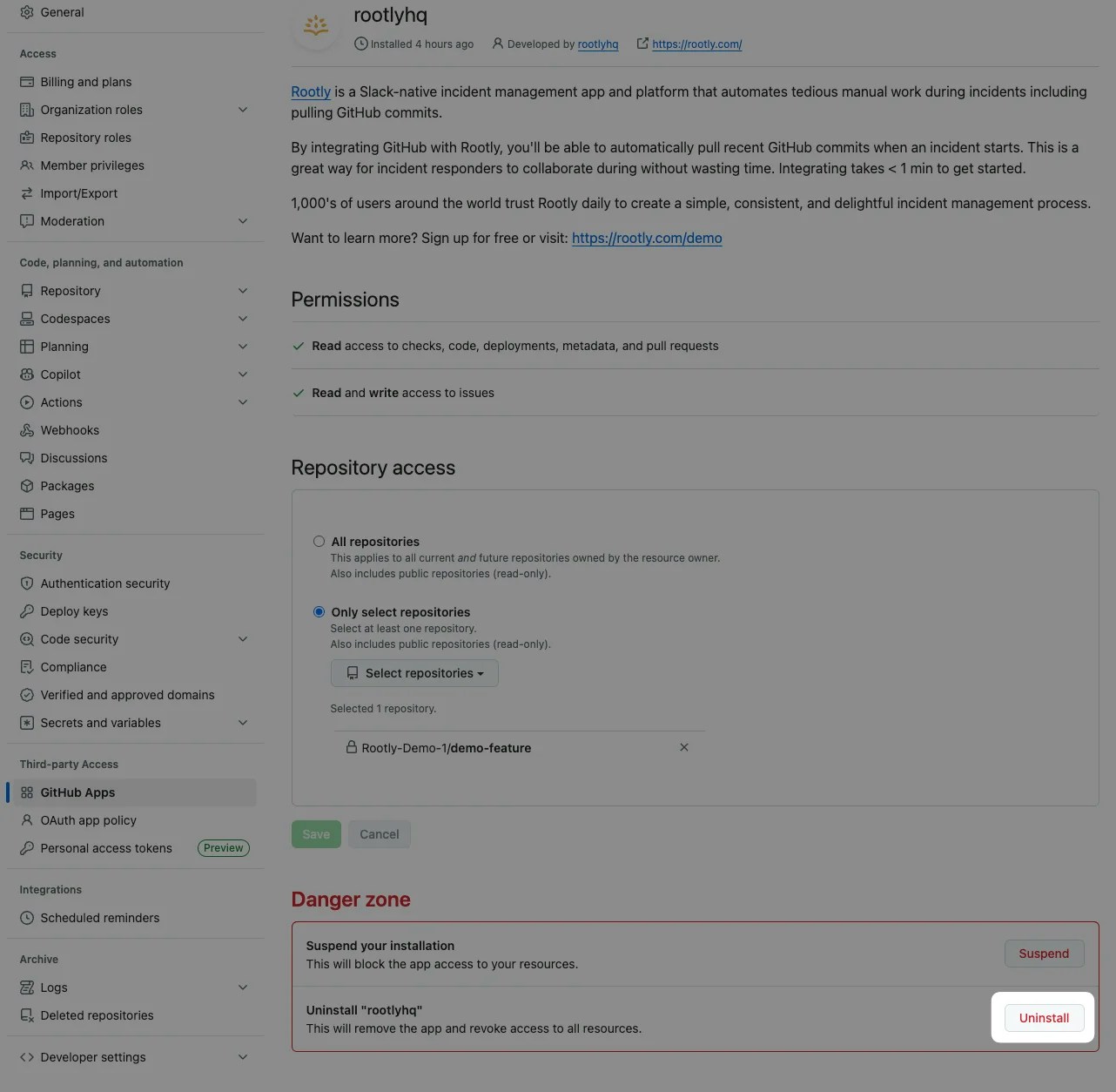
 Uninstall the **rootlyhq** app from your organization's GitHub Apps page.